The home office journal / Practical decisions
USB-C monitor setup: verify the first connection before adding a dock
Write separate requirements for video, charging and peripheral data, then verify each one along the actual laptop-to-monitor path.
By Office Home Supply editorial · Updated 2026-10-11 · 3 minute read
One cable can carry several separate jobs
A USB-C connection may be intended to send video, carry peripheral data and charge a laptop. The connector's shape does not prove that every part of that path supports all three jobs. Start by writing each requirement separately. A monitor lighting up does not establish the charging power your laptop needs, and a laptop charging does not establish that the cable carries the intended video or data mode.
Identify the exact laptop port
Use the laptop manufacturer's documentation for the exact model and port. Record supported external-display modes, data capability and power behavior. If two USB-C-shaped ports have different functions, label the selected one in the plan. Keep operating-system and chip-generation restrictions visible when planning more than one display. A dock's advertised outputs do not override the host's documented display support.
Identify the exact monitor input
Record which port accepts video and whether that port also supplies power or acts as a peripheral hub upstream. Keep monitor power separate from power delivered to the computer. Write the manufacturer's stated laptop power delivery next to the laptop's requirements. If they differ, keep a separate laptop power adapter in the plan where the manufacturers support that arrangement. Do not describe a partial charging path as a complete replacement for the original adapter.
Check the supplied cable first
Confirm the contents of the selected regional package and the capability of the included cable. USB-IF's cable marking guidance distinguishes power and data ratings; a power number is not a data-speed guarantee. If a replacement cable is necessary, choose from the documented connection requirements instead of matching only connector ends. Record its exact model and intended function, so later troubleshooting does not start with an unidentified cable from a drawer.
Test the direct arrangement
Where the manufacturers support a direct laptop-to-monitor connection, check the intended resolution and refresh rate, charging behavior and a representative connected peripheral separately. Record what actually worked and what remains unknown. Use safe ordinary device connections rather than opening hardware. If a requirement fails, determine whether it belongs to the laptop, input, cable or settings before adding a dock as a general cure.
Add a dock for a named remaining requirement
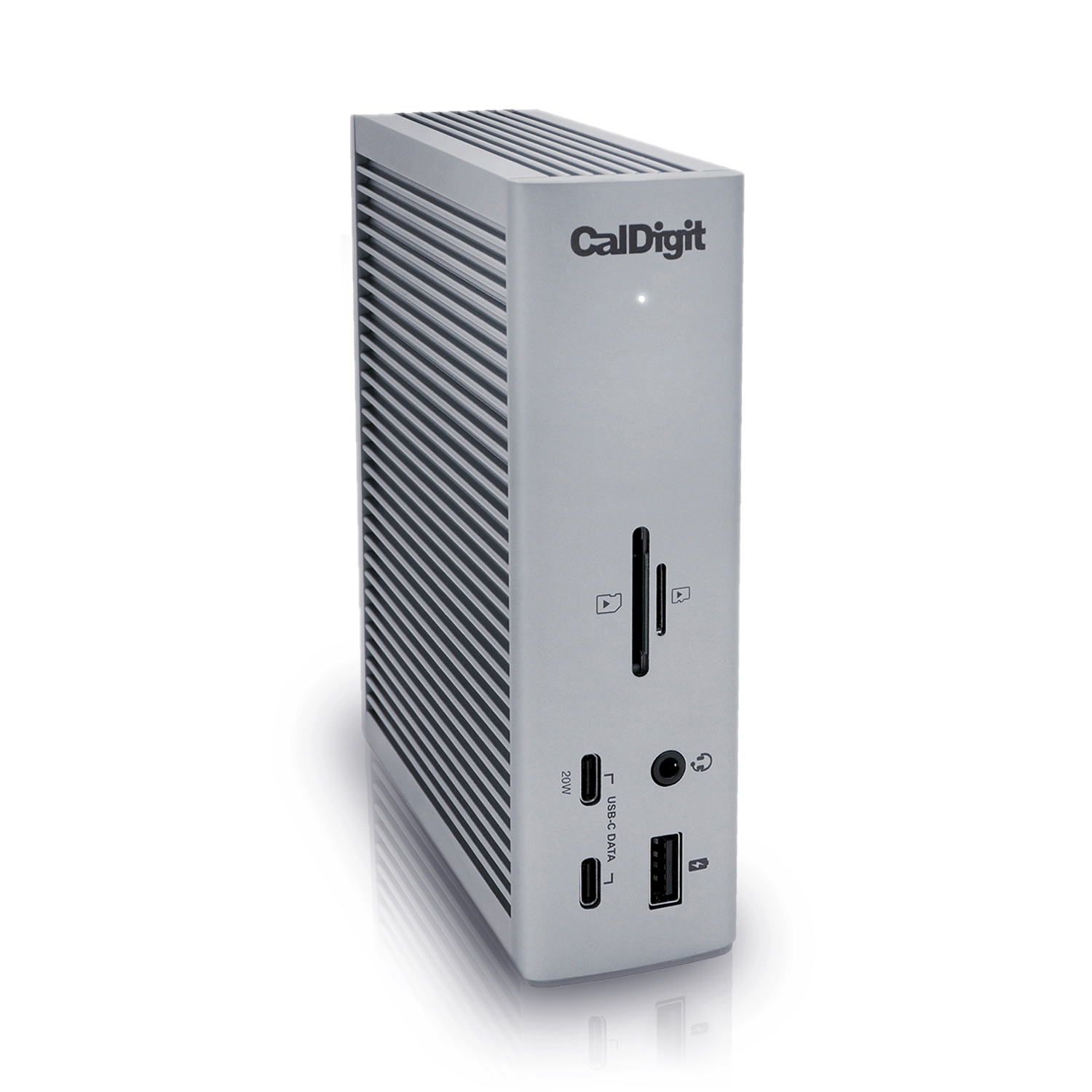
CalDigit's TS4 manual explains that display counts depend on the host connection and platform. Use that kind of exact compatibility evidence before selecting a dock to add ports or displays. Keep the direct arrangement and dock arrangement as separate Workspace Builder plans, including all required cables and adapters. The useful outcome is a complete supported path for your tasks, not merely fewer visible cables in a product photograph.
Sources & further reading
Original planning analysis based on the cited specifications. We do not claim hands-on testing. Confirm manufacturer compatibility and follow the supplied instructions.