The home office journal / Practical decisions
Plan two-computer USB switching on the Dell U3415W
Separate video and USB connections, record upstream assignments and use the Dell manual to prepare a predictable two-computer setup.
By Office Home Supply editorial · Updated 2026-10-11 · 3 minute read
Draw two paths for each computer
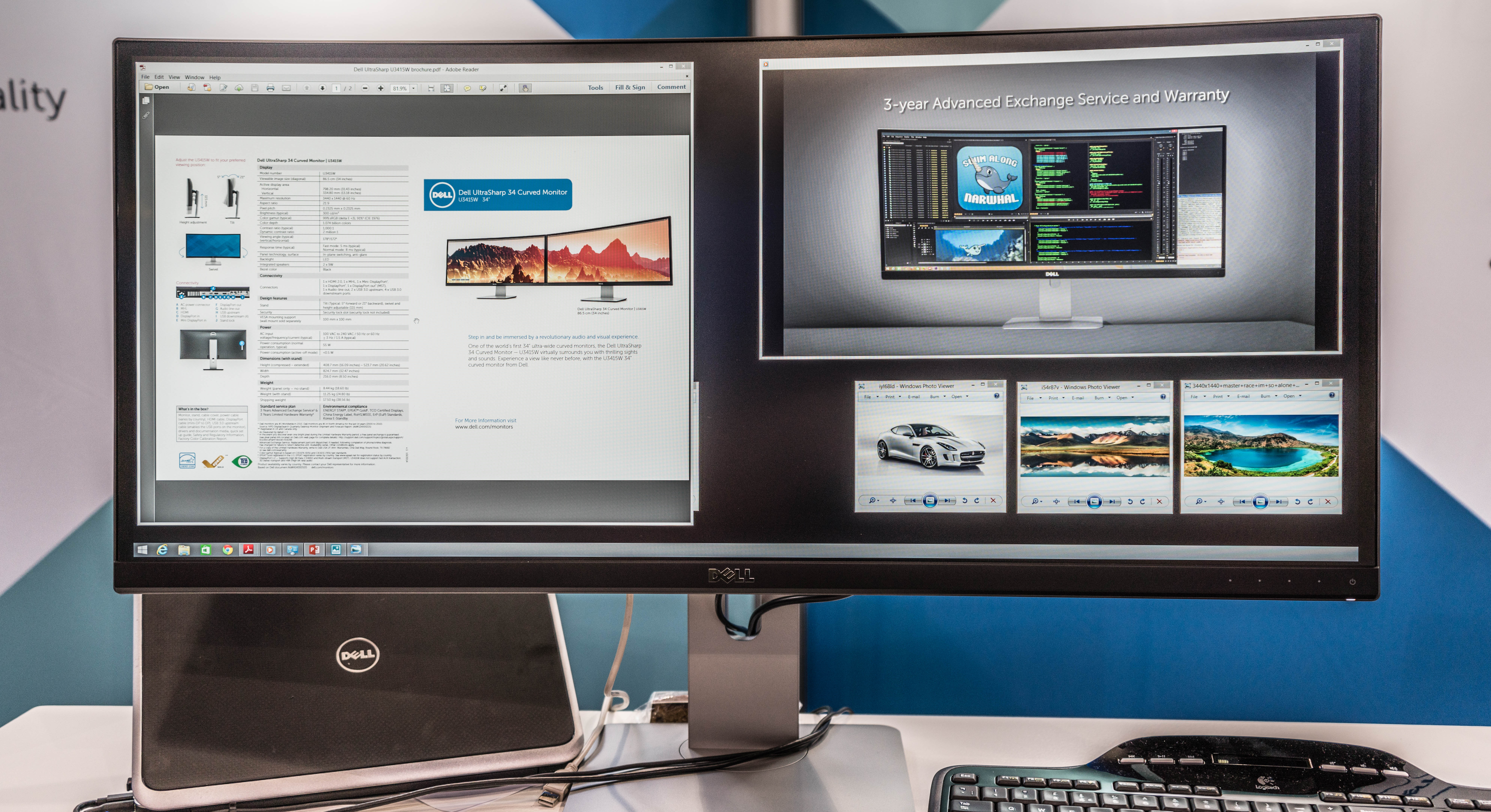
The Dell U3415W manual describes a two-computer setup using separate USB upstream connections and video inputs. Start by drawing a video path and a USB data path from each computer to the monitor. A picture appearing on screen proves the video connection is working; it does not establish that a keyboard plugged into the monitor is connected to that same computer.
Label by the actual connection
Give the computers understandable names such as work and personal. Record the monitor's video input and USB upstream connection used for each one. Label the cable ends with those names so that a later move does not reverse the arrangement. Retain the port names from the manual rather than calling every connection a monitor cable. Add the keyboard, mouse and other downstream USB devices to the drawing.
Set one connection up first
Follow Dell's setup procedure for one computer before adding the second. Check that the intended video input shows the correct machine and that downstream keyboard and mouse actions reach that machine. Record that known working state. Then add the second computer and its separate connections. If something fails, compare the new arrangement with the recorded single-computer state before buying another accessory.
Document the on-screen assignments
The manual explains that USB Selection settings can associate downstream USB devices with different input signals. Record the selected assignment for each video input. Use the manual's terminology when making your worksheet, and note the settings needed for your preferred viewing arrangement. Do not assume a change of video input automatically produces the desired USB destination under every stored configuration.
Use a controlled handover
Dell warns against changing upstream ports while USB storage is in use by the connected computer. Plan your switching routine around that requirement. Finish storage activity and use the operating system's appropriate removal procedure where applicable before the handover. Test keyboard and mouse switching with an ordinary document or input field on each computer so that you can tell which receives the next action. Avoid using a file transfer as the first switching experiment.
Keep model-specific expectations
Save the connection map and assignment record with the U3415W shortlist or setup notes. Repeat the verification after changing a dock, cable or computer. This is guidance for the documented U3415W arrangement, not a claim that every Dell USB hub behaves the same way, nor that this monitor supports USB-C laptop charging. Current retailer packages and cable contents should be checked independently before purchase.
Sources & further reading
Original planning analysis based on the cited specifications. We do not claim hands-on testing. Confirm manufacturer compatibility and follow the supplied instructions.